

# Keyboard Shortcut Typing Test: Measure Real Workflow Speed
A keyboard shortcut typing test measures how quickly and accurately you use shortcuts while writing, editing, switching, and correcting text. The useful version tracks command time, modifier mistakes, recovery cost, and whether shortcuts reduce total work. Run it when normal WPM looks fine but your real workflow still feels slow.
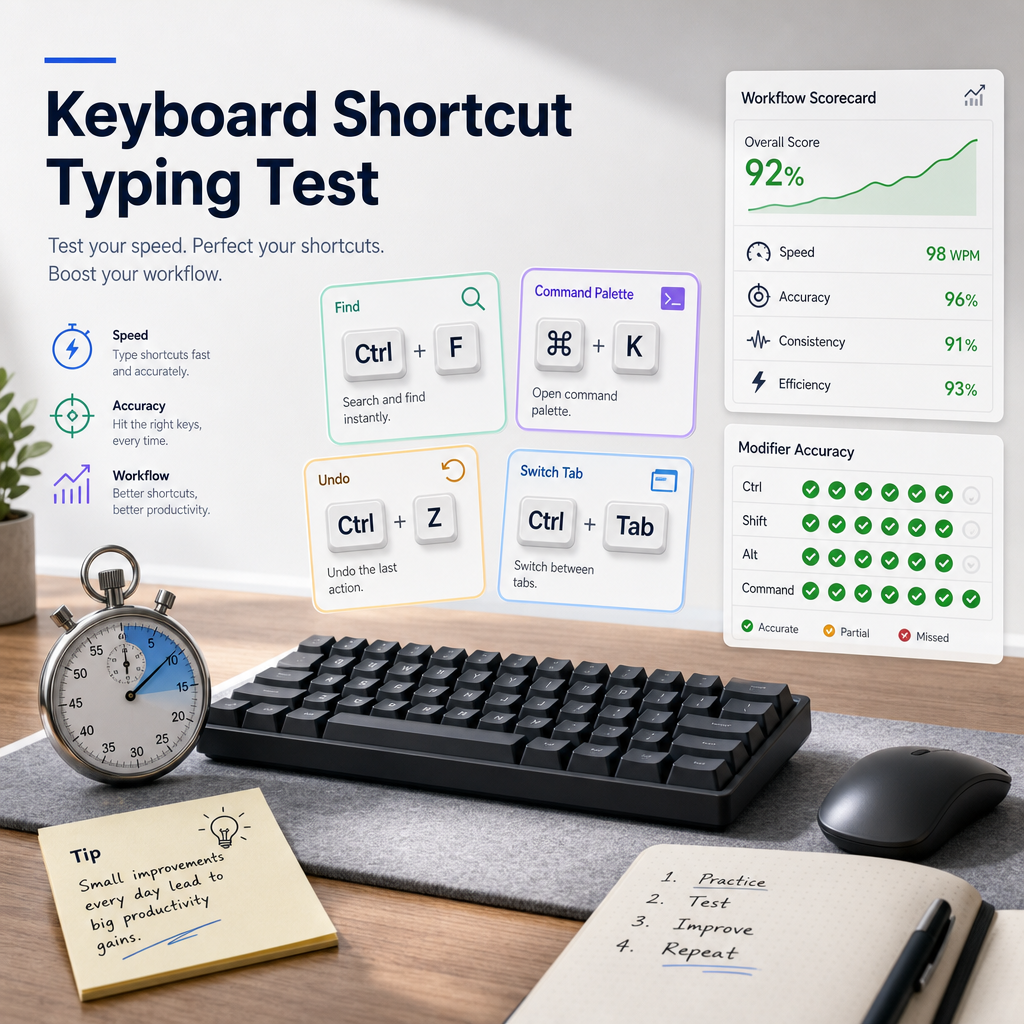
Most typing tests measure continuous text. Real work rarely stays that clean. You select a sentence, bold a heading, switch tabs, paste a link, undo a mistake, open search, rename a file, or move between fields. Those actions use the same hands as typing, but they stress different timing.
This guide gives you a 20 minute test, a shortcut scorecard, and a practice plan. It helps writers, students, support teams, and developers find the shortcuts that save time and the shortcuts that only add finger gymnastics.
# Why a keyboard shortcut typing test needs its own score
A high WPM score can hide slow command flow. You might type paragraphs quickly, then lose time every time you need Ctrl or Command, Shift, Alt, Option, Tab, Escape, or arrow keys. The delay often comes from three problems:
- You pause to remember the shortcut.
- You hit the wrong modifier or wrong target key.
- You use a shortcut that solves the wrong task.
A keyboard shortcut typing test separates those problems from plain text speed. That matters because shortcuts should reduce total task time. If a shortcut saves one mouse movement but creates two correction steps, it is not helping your workflow.
Start with a normal typing baseline before you test shortcuts. If your setup changes from day to day, use the guide on type speed test keyboard setup to lock your keyboard, layout, zoom, and desk position first. Shortcut data needs boring conditions. Drama belongs elsewhere, preferably outside the spreadsheet.
# The 20 minute keyboard shortcut typing test
Use this test with one app at a time. A document editor, email client, browser, code editor, or notes app all work. Do not test every shortcut you know. Pick the commands you use often enough to affect your day.
# Step 1: choose 10 workflow commands
Build a list of 10 shortcuts that match real work. Use a mix of editing, navigation, formatting, and recovery commands.
For a writing session, include commands such as select all, copy, paste, undo, redo, bold, find, replace, switch tab, and save. For a coding session, include comment line, duplicate line, rename symbol, go to file, search, format document, and terminal focus.
Use primary references for exact combinations. Apple publishes a clear list of Mac keyboard shortcuts (opens new window). Google documents Google Docs keyboard shortcuts (opens new window) for common writing workflows. If you depend on web apps, WebAIM's keyboard accessibility guidance (opens new window) is useful because it explains why commands must remain reachable without a mouse.
Write each shortcut on a small list with the intended result. Do not include a shortcut unless you can describe what successful execution looks like.
# Step 2: create a small task script
A task script keeps the test fair. It also stops you from inventing easier work halfway through the run.
Use this 10 action sample for a writing app:
- Type a 40 word paragraph.
- Select the first sentence.
- Copy it.
- Move to the end of the document.
- Paste the copied sentence.
- Bold one phrase.
- Search for a word.
- Replace it once.
- Undo the replacement.
- Save or close the command panel.
For code or technical writing, replace bold with comment line, replace search with go to symbol, and add one bracket or quote correction. If you work with developer text, pair this test with the code typing test so symbol accuracy and command accuracy get measured separately.
# Step 3: run two measured rounds
Run the task script twice.
During round one, move at normal work speed. During round two, try to improve only the parts that felt unclear. Do not sprint through typing sections just to make the total time prettier. You are testing shortcut flow, not auditioning for a keyboard commercial.
Record four fields after each round:
| Metric | How to record it | Why it matters |
|---|---|---|
| Total task time | Seconds from first typed word to final command | Shows whether shortcuts reduce the whole workflow |
| Command hesitation | Count pauses longer than two seconds before a shortcut | Finds memory gaps |
| Modifier errors | Count wrong Ctrl, Command, Shift, Alt, Option, or key combos | Finds hand pattern problems |
| Recovery cost | Seconds spent undoing, fixing, or reopening panels | Shows the real price of mistakes |
If you use more than one operating system, test them separately. Command on macOS, Ctrl on Windows and Linux, and app specific shortcuts can look similar while feeling different enough to change results.
# Shortcut scorecard for real workflow speed
Use this scorecard after both rounds. The target is not maximum shortcut count. The target is lower total task cost.
| Result pattern | What it means | Best next move |
|---|---|---|
| Fast total time, few errors | Shortcut set fits the task | Keep the set and test again next week |
| Fast commands, many corrections | You are moving before the command is stable | Slow the first press and drill accuracy |
| Slow commands, low errors | Memory is the bottleneck | Practice recall without timing pressure |
| Fast typing, slow navigation | Cursor movement or tab switching is costing time | Add navigation shortcuts only |
| No time gain over mouse use | Shortcut may not fit this task | Remove it or keep it for different work |
A useful shortcut earns its place in the workflow. If a command creates hesitation every time, either practice it deliberately or stop forcing it. Some shortcuts are worth memorizing because they appear dozens of times per day. Others are trivia with keycaps attached.
# How to practice shortcut typing without making more mistakes
Shortcut practice works best in small sets. Pick three commands, then use them inside normal work for one week. Do not add a new layer until those commands happen without a pause.
Use this weekly loop:
- Monday: choose three shortcuts from the scorecard.
- Tuesday and Wednesday: use them in ordinary work without timing.
- Thursday: run one short task script and record errors.
- Friday: run the full keyboard shortcut typing test again.
- Keep shortcuts that reduce time or errors. Drop shortcuts that still create friction.
For commands that involve text correction, track recovery cost carefully. Undo, redo, find, replace, and navigation shortcuts can save time, but they can also amplify mistakes. If error recovery dominates the result, use the typing speed test error recovery method to measure the cost of fixing mistakes before you add more commands.
The same rule applies to shortcuts inside typing games and timed tests. A shortcut that helps one app may not transfer to another. Browser tab shortcuts, editor commands, and document formatting commands all live in different contexts. Test the context you actually use.
# Build a shortcut set by job, not by popularity
Popular shortcut lists are useful as menus, not training plans. Your best shortcut set depends on the job.
Writers usually benefit from find, replace, select word, select sentence, paste without formatting, undo, redo, and heading or bold commands. Students often need tab switching, copy, paste, search, citation tools, and document navigation. Developers need line movement, search across files, terminal focus, formatting, comment toggles, and bracket or quote correction. Support agents often need clipboard history, field navigation, canned response expansion, and tab switching.
Choose shortcuts that remove repeated friction. A shortcut you use 40 times per day deserves more practice than a clever command you use twice per month. Frequency beats novelty. The keyboard has enough novelty already, usually hiding near the function row.
When comparing shortcuts, measure the whole task. For example, paste without formatting may be slower than normal paste on the first try, but it can save time if it prevents cleanup. Search may feel slower than scrolling for one paragraph, but it usually wins in long documents. Tab switching may save seconds only when it prevents mouse travel and focus loss.
# Common mistakes in shortcut testing
The first mistake is testing too many shortcuts at once. A list of 40 commands creates noise. Start with 10, then train three.
The second mistake is measuring only command speed. A shortcut that fires quickly and does the wrong thing has produced a fast problem. Count recovery time.
The third mistake is mixing apps. Browser shortcuts, document shortcuts, and editor shortcuts can conflict. Test one app context per session.
The fourth mistake is ignoring accessibility and comfort. If a shortcut requires painful reach, awkward chords, or repeated strain, remap it or skip it. Keyboard access should make the workflow more reachable, not turn your left hand into a folding chair.
The fifth mistake is treating mouse use as failure. The mouse is part of many workflows. The question is whether a shortcut improves a repeated task. If the mouse wins for a rare visual action, let it win and move on.
# When to retest your shortcut workflow
Retest after any change that affects command timing: a new keyboard, new operating system, new editor, different layout, browser change, accessibility setting, or major app update. Retest when your WPM improves but work still feels slow. Retest when you notice repeated pauses before the same command.
Keep the results simple. One row per test is enough: date, app, shortcut set, total time, modifier errors, recovery cost, and one note. After four sessions, patterns become visible. You will see which commands became automatic and which ones still demand a tiny meeting before every press.
For broader writing transfer, compare the shortcut test with a normal writing session. The guide on type writing tests helps connect measured typing speed with real output. Shortcut testing adds the command layer that plain text tests do not capture.
# Conclusion
A keyboard shortcut typing test shows whether shortcuts make real work faster, cleaner, and easier to repeat. Measure total task time, hesitation, modifier errors, and recovery cost. Keep the shortcuts that reduce friction. Drill the ones that matter often. Drop the ones that only look clever on a laminated reference card.
Run the test after your next normal TypeTest baseline. If the shortcut score improves while WPM and accuracy stay stable, your workflow is getting faster in the place that counts: the work between the words.