

# Best Debounce Time for Keyboard Typing Tests
The best debounce time for keyboard typing tests is the lowest setting that does not create chatter, missed keys, or accidental repeats during normal typing. For many keyboards, that means starting near 5 ms, testing lower only if the firmware supports it, and raising the value when you see double letters or unstable results. Treat debounce as a calibration setting, not a speed trophy.
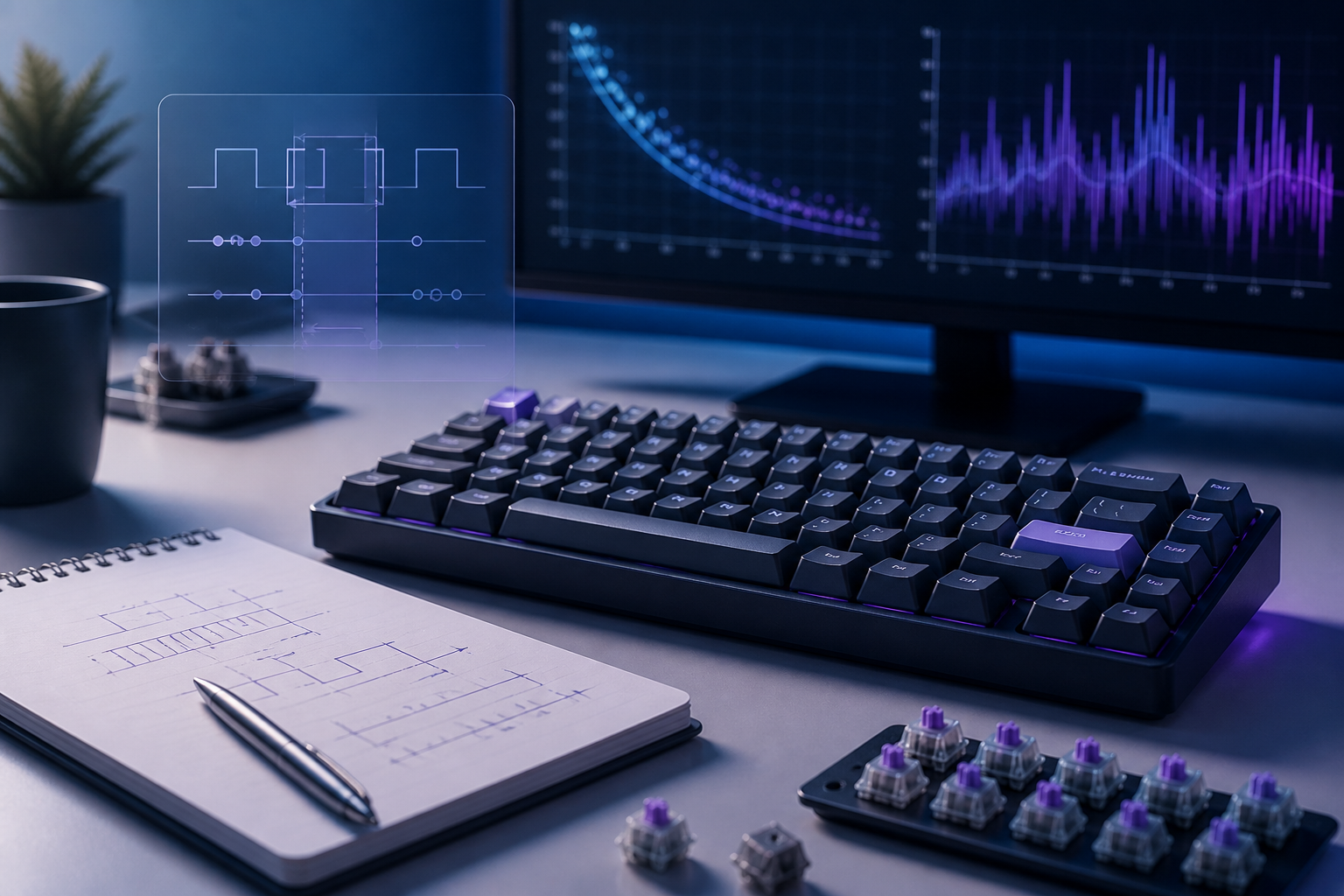
Debounce can change how a keyboard feels because it controls how long the keyboard waits before trusting a switch signal. Too high can make the board feel dull. Too low can let electrical noise through as extra key presses. The useful setting sits between those failures.
# What keyboard debounce time actually changes
Keyboard switches do not always produce one perfectly clean signal when you press a key. The contacts can bounce for a few milliseconds before settling. Debounce logic filters that noisy period so one press becomes one character.
In typing tests, debounce affects three things:
- Latency: how quickly the key press reaches the computer
- Chatter control: whether one press becomes two letters
- Repeatability: whether the same passage produces stable errors across runs
A lower debounce value can reduce delay, but only if the switch and firmware stay reliable. A higher value can suppress chatter, but it may make rapid key transitions feel less responsive. The difference is usually small compared with reading, rhythm, and accuracy, but it matters when your keyboard is already near the edge.
If your broader setup is unstable, fix that first. Use the type speed test keyboard setup guide before tuning a single firmware value.
# Use this debounce calibration table
Start with symptoms, then choose a test. Guessing at the lowest number gives you exciting data in the same way a loose chair gives you posture feedback.
| Symptom during typing | Likely debounce issue | What to test next | Practical action |
|---|---|---|---|
| Random double letters | Debounce too low or worn switch | Repeat the same passage twice and inspect repeated characters | Raise debounce by 1 to 2 ms or test another switch |
| Missed letters in fast rolls | Firmware scan, rollover, or technique issue | Run a rollover check and compare slow versus fast rolls | Do not lower debounce until rollover passes |
| Board feels delayed but accurate | Debounce may be higher than needed | Compare two settings with the same 60 second passage | Lower one step if errors do not rise |
| Only one key chatters | Switch problem, not global timing | Press that key in plain text 100 times | Replace or clean the switch before changing all keys |
| Score changes but error type does not | Normal run variance | Run three paired tests per setting | Keep the setting and practice the actual weakness |
This table keeps the decision tied to evidence. Debounce tuning should solve a specific problem: double input, delay, or unstable key registration.
# Run a 20 minute keyboard debounce test
Use an A/B routine so the result reflects the setting, not your mood, caffeine level, or heroic second attempt.
- Pick two debounce settings. Use your current setting and one lower or higher value.
- Keep the same keyboard, layout, browser, desk position, and test duration.
- Warm up for three minutes and discard the score.
- Run one 60 second typing test at setting A.
- Rest for one minute.
- Run the same type of test at setting B.
- Repeat the A/B pair two more times.
- Record WPM, accuracy, repeated letters, missed letters, and subjective delay.
Use the median clean result for each setting. If the lower setting raises WPM by one point but adds chatter, it failed. If the higher setting removes chatter while leaving speed and accuracy stable, it passed. If both settings behave the same, keep the safer value and move on.
For a clean benchmark structure, pair this with the type speed test baseline routine. The baseline keeps the typing task steady while you change only the debounce value.
# Separate debounce from key repeat delay
Debounce and key repeat delay are easy to mix up because both involve timing. They solve different problems.
Debounce filters the first physical press. Key repeat delay controls how long the system waits before a held key starts repeating. If you see aaaa after holding a key, that is repeat behavior. If you tap a once and see aa, that is chatter or input duplication.
Operating systems expose repeat settings more often than keyboard firmware exposes debounce. Apple documents how users can change keyboard repeat rate and delay on macOS (opens new window). Those settings can make held keys feel faster or slower, but they do not fix a switch that reports two taps from one press.
During a typing test, key repeat should almost never matter because normal prose rarely requires holding letter keys. If changing repeat settings changes your WPM, you may be leaning on held keys, navigation keys, or correction shortcuts more than you think.
# Check firmware guidance before chasing zero debounce
Some keyboard firmware lets users adjust debounce behavior. QMK documents debounce algorithms and timing concepts (opens new window), including the trade-off between responsiveness and filtering. ZMK documents keyboard scan behavior in its keyboard scan configuration (opens new window), which helps explain why firmware timing is part of the input path.
These references matter because a setting name in one configurator may not mean the same thing in another. One board may expose debounce as milliseconds. Another may hide it behind a preset. A third may use hardware or firmware choices that make user tuning unnecessary.
Do not copy a number from a gaming forum into a typing routine without testing it on your keyboard. Switch type, age, firmware, wireless mode, and scan behavior all change the result. A fast setting on one board can become a double-letter generator on another.
# Measure latency without pretending it is the whole score
Keyboard latency is real. It also has a ceiling on how much it can improve a normal typing score. A few milliseconds matter more in rhythm and games than in a one minute passage where reading, corrections, and accuracy dominate.
RTINGS explains keyboard latency testing (opens new window) as part of device evaluation. That kind of measurement helps compare hardware, but your TypeTest result still depends on the full typing loop. A board can have excellent measured latency and still produce poor results if the layout causes errors or the switch weight tires your hands.
Use latency as one input in the decision:
- If two debounce settings are equally accurate, prefer the more responsive one.
- If the faster setting creates chatter, reject it.
- If both settings feel identical in typing, stop tuning and practice passages.
- If only games feel different, keep separate settings for games and benchmark typing.
For input failures that look like rollover or ghosting, use the keyboard ghosting test guide before blaming debounce.
# Build a clean debounce log
A debounce log does not need many fields. It needs consistent ones.
Record these values for each test:
- date
- keyboard and connection mode
- firmware or app used to change debounce
- debounce value
- test duration
- WPM
- accuracy
- repeated letters
- missed letters
- notes about feel
Three pairs of A/B tests are enough for most decisions. More testing can help if the board has intermittent chatter, but most people hit diminishing returns fast. When a setting passes three clean sessions across different days, keep it until hardware or firmware changes.
The log protects you from a common trap: changing debounce, switching passages, changing key repeat, and then declaring one variable responsible for everything. One variable per test keeps the story shorter and the conclusion less fictional.
# When to stop tuning and start practicing
Stop tuning debounce when the keyboard produces clean characters, errors look like human mistakes, and three comparable runs stay within a normal score band. At that point, more tuning usually becomes procrastination with a settings menu.
Move to practice when you see these patterns:
- Errors cluster around punctuation or capitals.
- Speed drops after 30 seconds.
- Accuracy falls when the passage uses unfamiliar words.
- Your hands tense up during faster runs.
- Scores improve only when you reroll easier text.
Those are typing problems, not debounce problems. Use the WPM tracker guide to log them across a week and choose one practice target.
A good debounce setting disappears. The keyboard feels ordinary, one press creates one character, and the score reflects your typing instead of the switch contacts having a tiny argument under each key.
# Set the best debounce time for your keyboard
The best debounce time for keyboard typing tests is the lowest reliable value on your actual board. Start from the current setting, run paired tests, and judge the result by clean input first. Lower latency only helps when accuracy and character registration stay stable.
If the keyboard chatters, raise debounce or fix the switch. If the board feels slow but stays accurate, test one lower step. If the result does not change after a few controlled runs, stop tuning. A stable keyboard gives you better typing data, and better data gives your practice something useful to do.