

# Keyboard Accessories for Typing: What Actually Helps
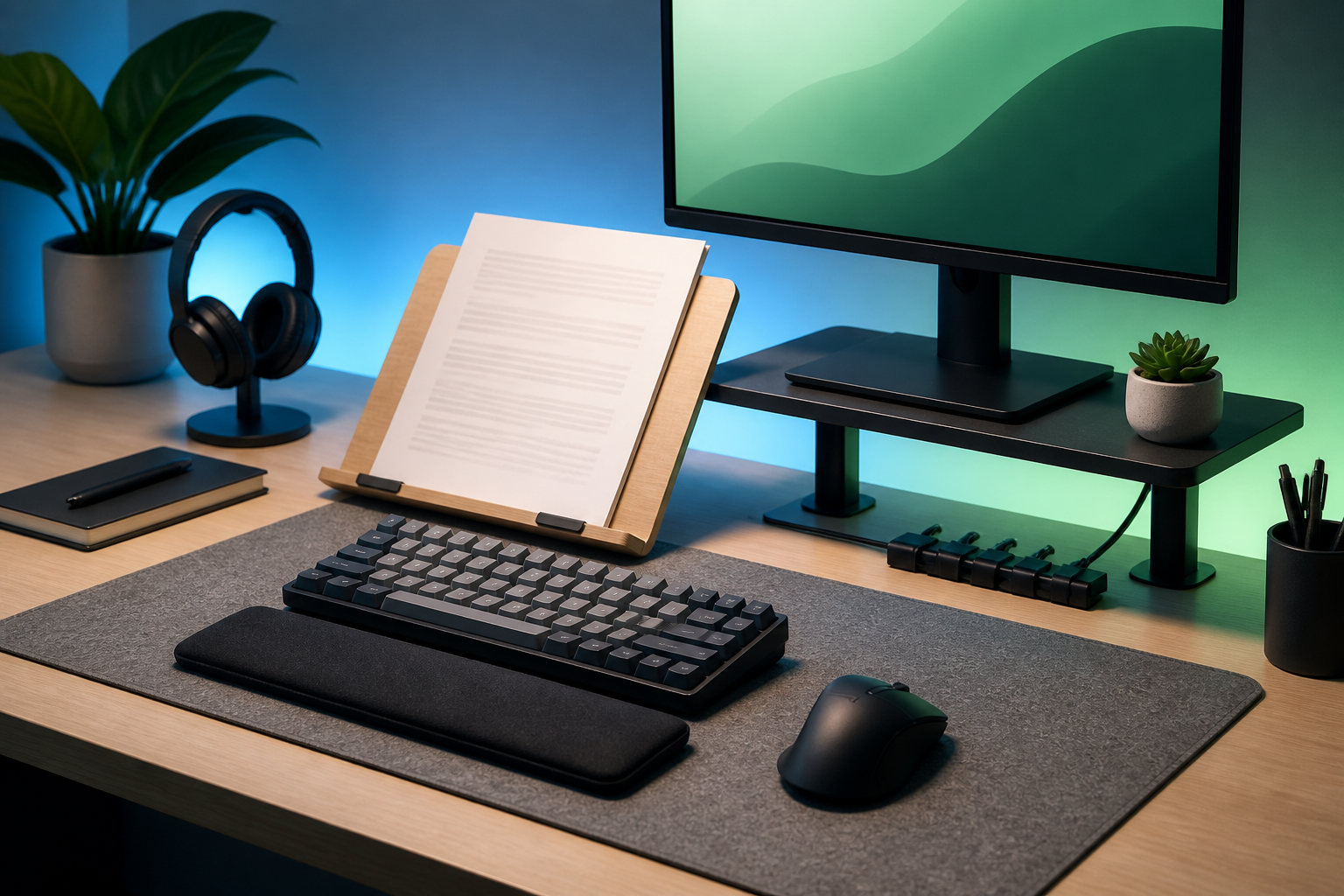
Keyboard accessories for typing help when they make your setup more repeatable: same hand angle, same screen distance, same paper position, same noise level, and fewer small interruptions. The useful accessories are boring in the best possible way. A wrist rest, desk mat, document holder, monitor stand, footrest, and cable tidy can improve comfort and consistency, but only if each one solves a specific friction point you can name.
Use this guide to choose accessories by typing problem, not by desk photo. You will get a priority table, a 15 minute setup audit, and a short testing plan for checking whether an accessory actually helps your WPM and accuracy.
# Start with the typing problem, then buy the accessory
The first rule is simple: match the accessory to the failure mode.
If your wrists bend upward while typing, a wrist rest may help during pauses, but it should not lift your hands while you strike keys. If your shoulders creep up, a monitor stand or chair adjustment may do more than anything attached to the keyboard. If you copy from paper, a document holder can remove constant neck rotation. If your keyboard slides during fast bursts, a desk mat or grippier feet can make practice sessions more comparable.
This matters because typing scores are sensitive to setup drift. A type speed test keyboard setup only tells you something useful when the physical conditions stay stable between attempts.
Use this quick diagnosis before shopping:
- Wrist pain or pressure: check keyboard height, edge pressure, and rest position.
- Shoulder tension: check arm support, desk height, and screen distance.
- Neck rotation: check whether notes, second screens, or paper sit off to one side.
- Sliding keyboard: check desk surface, mat grip, and cable pull.
- Loud typing: check switch force, desk resonance, and bottoming out.
# Keyboard accessory priority table
Use this table as a practical buying order. It assumes your keyboard already works and your goal is cleaner daily typing, not a collector shelf with RGB weather patterns.
| Accessory | Best when | Setup rule | How to test it |
|---|---|---|---|
| Desk mat | Keyboard slides or desk surface feels harsh | Keep the keyboard flat and stable | Run three 60 second tests before and after, same passage type |
| Wrist rest | Palms press into the desk edge during pauses | Rest during breaks, hover while typing | Check whether accuracy improves without slower speed |
| Document holder | You copy from paper, notes, or a second device | Place source text near screen height | Track neck turns and correction mistakes in a copy task |
| Monitor stand | Screen is too low or too close | Top third of screen near eye level | Check whether shoulders stay lower after 10 minutes |
| Footrest | Feet dangle or chair height must rise for desk | Keep thighs supported and feet stable | Watch whether posture changes less during long passages |
| Cable tidy | Cable pull moves the board or mouse | Leave slack near the keyboard | Check whether keyboard position stays fixed after five runs |
| Keycap puller and cleaning brush | Sticky keys or debris change feel | Clean before judging hardware | Compare missed repeats before and after cleaning |
Do not buy everything at once. Change one thing, test it, then decide. If you change the mat, wrist rest, chair, and keyboard tilt together, your next score becomes a foggy little mystery with shipping receipts.
# Wrist rests help during pauses, not during keystrokes
A wrist rest sounds like the obvious typing accessory. It can help, but the name misleads people. During active typing, your hands should move freely. Pressing your wrists or palms into a rest while reaching for keys can increase awkward angles and slow lateral movement.
Use the rest as a landing pad between bursts. Your palms can touch it while you pause, read the next phrase, or reset. When you type, keep the contact light or lift slightly. The goal is neutral wrist position, not a padded hinge.
The OSHA computer workstation checklist (opens new window) gives a useful baseline: wrists and hands should stay in line with forearms, shoulders relaxed, and input devices close enough that you do not reach. The Canadian Centre for Occupational Health and Safety (opens new window) also emphasizes neutral wrist posture and avoiding pressure at the wrist.
Test a wrist rest with a controlled run:
- Run a normal 60 second typing test at TypeTest.io (opens new window).
- Note WPM, accuracy, and whether your wrists press into the desk.
- Add the wrist rest and repeat the same test format after two minutes of adjustment.
- Keep it only if comfort improves without a clear accuracy drop.
If the rest forces your wrists upward, remove it. A soft accessory in the wrong height is still wrong. It just apologizes while causing trouble.
# A desk mat is a stability tool
A desk mat helps typing when it creates a stable surface. It should stop the keyboard from sliding, reduce harsh desk contact, and soften sound from the board hitting the surface.
This is useful for fast typing practice because small keyboard shifts create small reach changes. A mat can also make a mechanical keyboard typing test more repeatable by controlling desk resonance and grip.
Choose a mat that is large enough for keyboard and mouse movement, thin enough that it does not raise the board too high, firm enough that the keyboard does not sink, and easy to clean.
To test it, mark the keyboard position with two small pieces of removable tape. Run five short tests. If the keyboard drifts without the mat and stays fixed with the mat, the accessory earns its place.
# Document holders reduce copy typing errors
If you copy from paper, a notebook, or printed code, a document holder can matter more than a new keyboard. Copy typing fails when your eyes travel too far between source and screen. Each head turn adds a chance to lose your place.
Place the source text near the monitor, close to eye height, and near the same distance as the screen. The Cornell Ergonomics Web (opens new window) recommends positioning work materials to reduce awkward neck posture and repeated reaches. That advice maps cleanly to typing practice: source text should be easy to scan without twisting.
Use a document holder for:
- Printed notes.
- Recipes or forms.
- Legal, medical, or technical copy.
- Code snippets.
- Any task where source text sits beside the keyboard.
Then run a copy task. Pick a 150 word passage from paper, type it once with the paper flat on the desk, then once with the holder. Compare errors where you skipped words, repeated lines, or lost punctuation. Those mistakes usually come from visual tracking, not finger speed.
This is a different skill from a normal WPM run. A plain typing test measures how fast you reproduce on-screen text. Copy typing measures eye travel, working memory, and recovery after losing your spot. The accessory is worth considering when the second problem appears in real work.
# Monitor stands and footrests fix upstream posture problems
Many typing problems start away from the keyboard. If the screen sits too low, your head drops. If the chair rises to match the desk, your feet may float. If your feet float, your posture shifts. Then your hands compensate.
A monitor stand can raise the screen to a more comfortable height. A footrest can support your feet when the desk height forces the chair upward. The Health and Safety Executive display screen equipment guidance (opens new window) recommends arranging screens, keyboards, chairs, and work surfaces so users can work without awkward posture and can change position.
Do a 15 minute audit:
- Sit as you normally type.
- Put both feet flat, either on the floor or on a footrest.
- Relax shoulders.
- Bring the keyboard close enough that elbows stay near your sides.
- Raise or lower the screen so you do not crane your neck.
- Run a five minute passage and note what changed.
This audit is useful before buying anything. Sometimes the fix is free: move the monitor, lower the keyboard feet, bring the keyboard closer, or stop sitting like a question mark with deadlines.
For longer sessions, pair setup changes with an untimed typing test. Untimed practice makes posture drift easier to notice because you are not chasing the clock.
# Cleaning tools count as typing accessories
A keycap puller, small brush, microfiber cloth, and compressed air can improve typing consistency by removing debris. Sticky keys and gritty switches create inconsistent force. Inconsistent force creates missed letters, repeated letters, and hesitation.
Clean before you judge a keyboard. If one key feels different, you may have a maintenance problem rather than a hardware problem.
Use this cleaning checklist:
- Unplug the keyboard or turn it off.
- Remove loose debris with the keyboard angled downward.
- Brush around keycaps.
- Remove keycaps only if the keyboard design supports it.
- Let everything dry before use.
- Run a short test focused on the keys that felt inconsistent.
# How to test whether an accessory improved typing
Use a small before and after test. Keep it dull and controlled. Dull is how you catch the truth before it puts on a gaming headset.
Run this protocol:
- Choose one test format: 60 seconds, same language, same punctuation setting.
- Run three baseline tests.
- Change one accessory.
- Use the setup for five minutes without scoring.
- Run three more tests.
- Compare median WPM, median accuracy, and comfort notes.
- Keep the change only if it improves comfort, stability, accuracy, or repeatability.
Do not chase a single best score. A single score can jump because you got an easy passage or warmed up. The median of three runs gives a calmer signal.
Track these fields:
| Field | Why it matters |
|---|---|
| Median WPM | Shows speed without rewarding one lucky run |
| Median accuracy | Catches accessories that make you faster but sloppier |
| Error cluster | Shows whether a specific hand or key improved |
| Comfort after 10 minutes | Captures the reason accessories exist |
| Setup drift | Shows whether the board, posture, or screen moved |
If the accessory improves comfort but WPM stays flat, that can still be a good result. Comfort supports practice volume. Practice volume supports speed later.
# What to skip first
Skip accessories that solve problems you do not have. A thick wrist rest will not fix a high desk. A premium cable will not fix a sliding keyboard if the cable already has slack. A heavy desk mat will not fix tense shoulders. Novelty keycaps will not make punctuation easier, despite their confidence.
Also skip accessories that make testing inconsistent. If a wrist rest changes hand height each time you sit down, it may make scores noisier. If a mat bunches up, remove it. If a monitor arm drifts, tighten it before you judge your typing.
The best keyboard accessories for typing are the ones you stop noticing. They make the same motion easier to repeat tomorrow.
# Build your accessory plan
Start with one problem from your next typing session. If your keyboard moves, test a mat. If your wrists press into the desk edge, test a properly sized rest. If copy typing creates errors, test a document holder. If posture falls apart after 10 minutes, check monitor height, chair height, and foot support.
Then measure the result in TypeTest with three runs before and after. Keep the accessory if it improves comfort, accuracy, or repeatability. Remove it if it only makes the desk look more serious.
Keyboard accessories for typing should make practice cleaner. Choose the smallest change that fixes the clearest problem, then let your scores prove whether it belongs on the desk.