

# iPhone Typing Test: Measure Real Mobile Speed
An iPhone typing test measures how fast and accurately you can write on a phone keyboard during real mobile tasks. The useful version tracks thumb typing speed, correction cost, autocorrect changes, tap misses, and comfort. Run it separately from desktop WPM because mobile typing depends on screen size, grip, prediction settings, and one handed control.
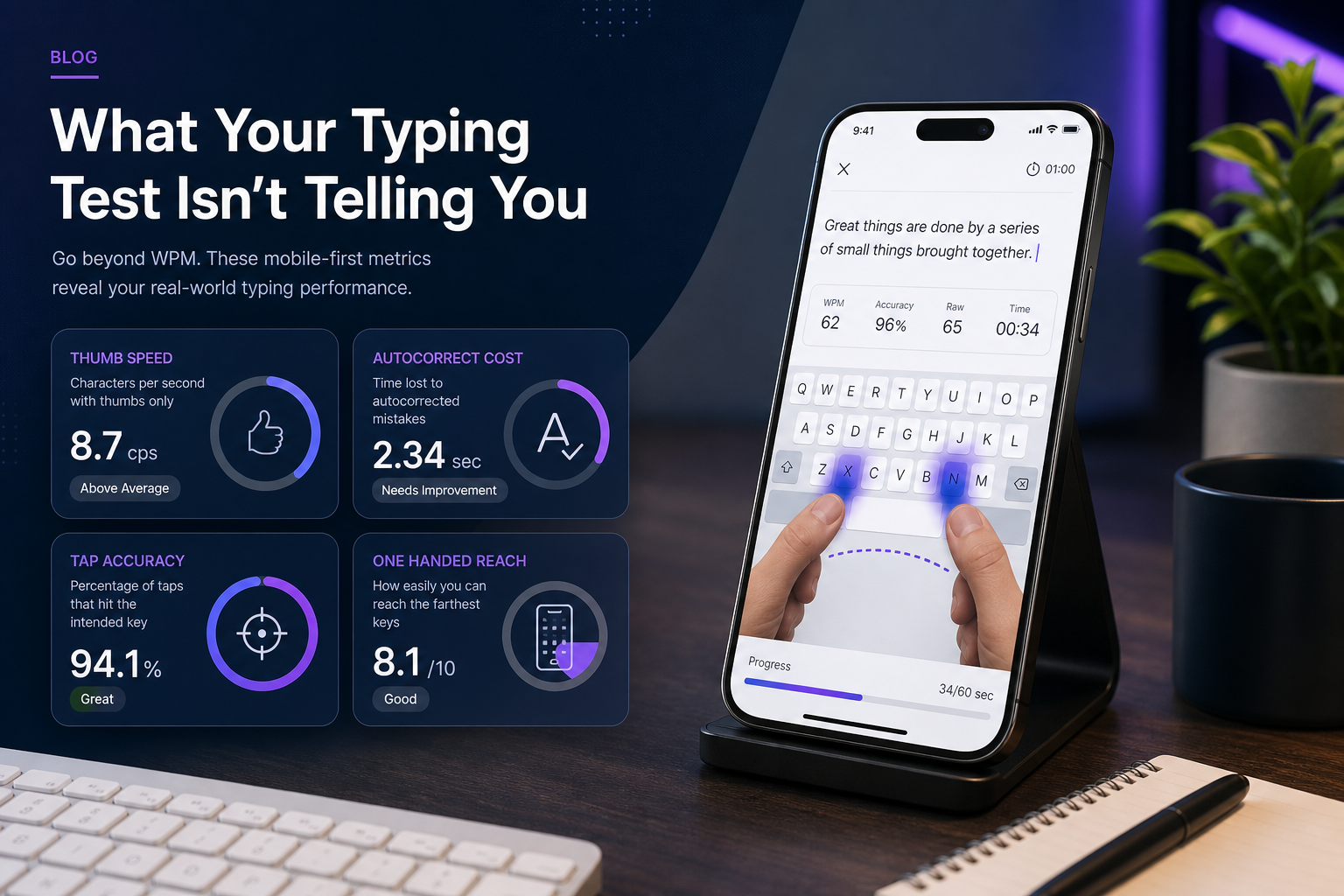
Desktop typing tests reward steady finger travel across physical keys. Phone typing rewards target control, prediction judgement, and fast recovery after tiny mistakes. A 70 WPM desktop typist can still lose time on a phone because every correction requires a different movement pattern.
This guide gives you a 15 minute mobile test, a scorecard, and a practice plan. Use it before you compare phone keyboards, change autocorrect settings, or decide that your thumbs have joined a union.
# What an iPhone typing test should measure
An iPhone typing test should measure mobile output, not desktop skill squeezed through glass. The goal is to learn whether your phone setup helps you write messages, notes, search queries, and short documents with fewer corrections.
Track four fields:
- Clean mobile WPM after corrections.
- Tap accuracy before autocorrect changes the text.
- Autocorrect benefit or damage.
- Comfort and control across one handed and two handed use.
Apple's guide to the iPhone onscreen keyboard (opens new window) explains core behaviors such as text entry, suggestions, and keyboard switching. If you also test an Android phone, Google's Gboard help (opens new window) gives a useful comparison point for settings and correction behavior.
Use a normal desktop baseline only as context. If your main typing score changes wildly from session to session, start with a stable warmup routine from the typing warm up guide. Mobile testing needs the same boring setup discipline, just with more fingerprints.
# The 15 minute iPhone typing test protocol
Run this test when your phone is charged, your hands are dry, and notifications are quiet. Keep the same phone case, keyboard language, display zoom, and autocorrect settings for the whole test.
# Step 1: record your setup
Write down these setup details before the first run:
| Setup field | What to record | Why it matters |
|---|---|---|
| Phone model and case | Device size, case thickness, screen protector | Changes thumb reach and edge taps |
| Keyboard mode | Standard, one handed, split, or third party keyboard | Changes key target size and movement distance |
| Text settings | Autocorrect, predictive text, slide to type, capitalization | Changes correction rate and final output |
| Grip | One handed, two thumbs, table supported | Changes speed and fatigue |
| Test location | Standing, seated, walking excluded | Keeps attention and posture comparable |
Do not change settings halfway through the test. If you want to compare settings, run a second full block later.
# Step 2: run three short writing blocks
Use three text types because phone typing fails in different ways.
- Plain sentence block, 60 seconds. Type normal lowercase and uppercase sentences with common words.
- Message block, 60 seconds. Type short replies with names, punctuation, and one correction.
- Search block, 60 seconds. Type compact phrases with spaces, numbers, and one symbol.
Avoid copying a desktop passage full of long paragraphs. Phone writing usually happens in bursts. The test should match that. If you want a lower pressure control run, compare this with the lowercase typing test guide, then add capitalization and punctuation back in.
After each block, count final correct words, uncorrected errors, corrections, and autocorrect reversals. An autocorrect reversal means the phone changed something and you had to change it back.
# Step 3: test one handed control
Run one extra 45 second block using your usual one handed grip. Use easy text. The point is reach control, not vocabulary theater.
Mark any misses on edge keys such as Q, P, A, L, Shift, Backspace, Return, or the number toggle. These misses reveal whether screen size, keyboard width, or grip causes the error.
The Web Content Accessibility Guidelines include target size guidance for touch controls in Target Size Minimum (opens new window). A phone keyboard is a dense target field, so small shifts in grip can change your effective accuracy.
# Step 4: log comfort after the test
Rate comfort from 1 to 5 after the final block.
1 means pain, numbness, or immediate strain. 3 means usable but tiring. 5 means relaxed control. Stop testing if discomfort persists. The CDC NIOSH overview of ergonomics and musculoskeletal health (opens new window) covers why repeated awkward posture and force matter in computer work, and the same principle applies when phone use turns into long thumb sessions.
# Score your iPhone typing test without hiding mistakes
Use corrected WPM as the headline score, then keep the error fields beside it. A single clean number feels tidy, but phone typing gets weird quickly.
Use this scorecard:
| Metric | Formula or rule | What it tells you |
|---|---|---|
| Corrected mobile WPM | Correct final words in 60 seconds | Usable speed after visible mistakes |
| Raw tap error rate | Mistyped characters before correction divided by total characters | Thumb target control |
| Correction cost | Seconds spent deleting, selecting, or retyping | Real price of mistakes |
| Autocorrect save rate | Helpful corrections minus harmful corrections | Whether prediction helps your writing |
| One handed penalty | Two handed WPM minus one handed WPM | Reach and grip cost |
If corrected WPM looks fine but correction cost is high, your phone is doing a lot of cleanup. That may still work for casual messages, but it can fail in names, passwords, code snippets, search queries, and technical terms.
If raw tap accuracy is high but WPM is low, the bottleneck may be hesitation. That can come from switching layouts, hunting punctuation, or stopping to inspect every suggestion.
# Decide what to change from your results
Use one change per retest. Phone settings interact, and changing five of them at once creates the kind of data soup nobody ordered.
| Result pattern | Likely cause | Change to test next |
|---|---|---|
| Many edge key misses | Phone is too wide for grip | Try two thumbs, one handed mode, or remove bulky case for one block |
| High autocorrect reversals | Dictionary conflicts with your vocabulary | Add names, disable one setting, or test without predictive text |
| Slow punctuation | Number and symbol layer is breaking flow | Practice a message block with commas, periods, question marks, and numbers |
| Good two handed score, poor one handed score | Reach cost dominates | Use one handed keyboard mode or reserve long writing for two thumbs |
| Fast starts, messy endings | Fatigue or attention drift | Shorten blocks and use a readiness check before longer writing |
For attention drift, pair the mobile test with a quick readiness check from the reaction speed test guide. A slow start on reaction trials can make a phone keyboard look worse than it is.
# Build a mobile typing practice plan
Practice should match the failure pattern. Five minutes is enough if the work is specific.
# Day 1: baseline and setup lock
Run the full 15 minute iPhone typing test. Save the scorecard. Do not train on the same day unless the baseline was comfortable. The first run tells you where the drag lives.
# Day 2: tap accuracy block
Type five 45 second plain sentence blocks. Move at a speed where you can keep raw tap errors low. If edge keys cause most misses, adjust grip before adding speed.
# Day 3: punctuation and number block
Type short messages with commas, periods, question marks, times, prices, and one name. The target is layer switching without panic. Punctuation practice feels small until you watch it eat half a message.
# Day 4: autocorrect judgement block
Type ten real phrases that include names, product terms, places, abbreviations, and words your phone often changes. Mark each correction as helpful, harmful, or neutral. If harmful corrections win, tune the dictionary or settings before more speed work.
# Day 5: transfer run
Write a real note, email draft, or message thread for five minutes. Then run one 60 second test block. Compare the score with Day 1. The transfer run matters because phone typing should improve actual communication, not only test behavior.
If you use keyboard shortcuts on desktop but lose time switching contexts on mobile, the keyboard shortcut typing test can help you separate command fluency from phone text entry. They are different skills, though both can ambush a workday with impressive efficiency.
# Common iPhone typing test mistakes
The first mistake is comparing phone WPM directly to desktop WPM. Treat mobile as its own baseline. Your thumbs use different mechanics than your fingers.
The second mistake is ignoring autocorrect. If the phone fixes every third word, your final WPM may look better than your tap control. If the phone changes names and technical terms, your real work gets slower.
The third mistake is testing while walking. That measures attention splitting and accident optimism. Sit or stand still.
The fourth mistake is using only easy text. Easy text has value for rhythm, but real phone writing includes names, punctuation, numbers, emojis, search fragments, and awkward proper nouns. Add them once your baseline is stable.
The fifth mistake is chasing settings before logging results. Test first, change one variable, then retest. The phone already has enough opinions.
# iPhone typing test checklist
Use this checklist before each retest:
- Same phone, case, keyboard, and text settings.
- Same grip for the compared block.
- Notifications silenced.
- Three 60 second blocks plus one 45 second one handed block.
- Corrected WPM, raw tap errors, correction cost, and autocorrect reversals logged.
- Comfort score recorded after the final block.
- Only one setting changed before any comparison run.
# Conclusion: measure mobile typing on mobile terms
An iPhone typing test should show how well your phone setup supports real writing. Track corrected speed, tap accuracy, autocorrect behavior, one handed reach, and comfort. Then change one setting or practice one weak pattern at a time.
Use the scorecard for two weeks before you judge a keyboard, case, or grip. Mobile typing improves fastest when the test matches the task. Desktop WPM can stay on its own throne, quietly polishing its keycaps.